Documentation
A plain how-to guide for connecting your AI client, setting up your site, and running Vision Builder Control day to day. For what each feature does, see the Features page.
What You Need
- A self-hosted WordPress site (5.6+; WordPress 6.9+ unlocks the Abilities-API connection method).
- The Vision Builder Control plugin, installed and activated.
- Elementor is optional — page-building features only appear if Elementor is active; every audit, SEO, and troubleshooting feature works without it.
- An MCP-capable AI client: Claude Code, Claude Desktop, or any other client that supports the Model Context Protocol.
Connect Your AI Client to Your Site
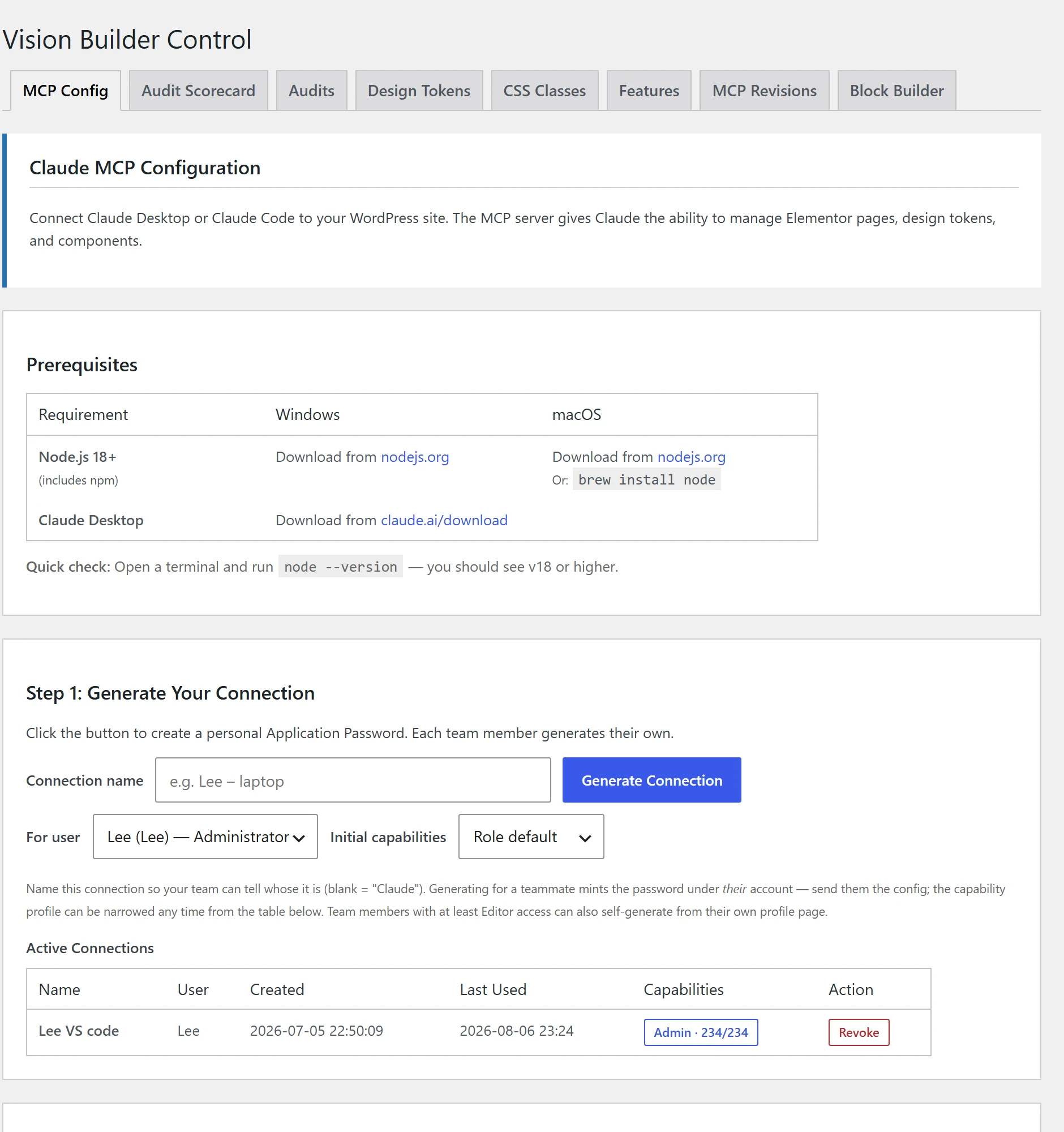
Go to WP Admin → Vision Builder Control → MCP Config. This tab is the default landing tab — start here. There are three ways to connect; pick whichever matches your client.
HTTP (recommended)
Best for: Claude Desktop connectors, claude.ai, ChatGPT, mobile
What you need: Just a URL and an app password — nothing to install.
Node (stdio)
Best for: Claude Code with a local Node install
What you need: A generated config snippet pasted into your client's MCP settings.
WordPress Abilities
Best for: Any future WP-native AI surface (WP 6.9+)
What you need: Nothing extra — automatic once abilities are registered.
To Connect
- Click Create Connection, give it a label (e.g. "Claude Code — my laptop").
- Choose a permission profile (see Managing Access below) — or accept the role-based default.
- Copy the generated config or credentials into your AI client.
- The password/credential is shown once — store it in your client's config, not anywhere else.
You can revoke any connection at any time from the same tab. Revoking takes effect immediately.
 Hover to pause · click for full size
Set Up Your Site
Before building or auditing, set the site-specific values Vision Builder Control uses everywhere else:
Vision Builder Control → Design Tokens
Your site's colors, typography, spacing, and default CTA/about links. These become the values every audit and every AI-built component uses, so set them once, correctly, up front.
Vision Builder Control → Site Profile
Business name, phone, address, and other identity details used where the AI needs real business context (schema markup, contact sections, etc.).
Managing Access (Permission Profiles)
Every connection can be scoped down from what the underlying WordPress user is allowed to do. Presets:
| Profile | Can Do |
|---|---|
| Auditor | Run audits and view reports only — no content or structural changes. |
| Content Editor | Edit existing content, cannot restructure pages or change site-wide settings. |
| Full Builder | Build and edit pages, including Elementor structure. |
| Admin | Everything the underlying WordPress user can do. |
Profiles can only remove access — they can never grant more than the WordPress account already has. This makes it safe to issue a scoped connection to a client, a freelancer, or a junior team member: give them "Auditor" and they cannot touch content, no matter what they ask the AI to do.
Non-admin users with edit access can generate their own connection from their WordPress profile page, without needing an admin to do it for them.
Running an Audit
Audits are grouped into Skills — ask your AI client to run one, or trigger it from Vision Builder Control → Audit Scorecard in WP Admin. Each Skill returns one scored, ranked report:
- SEO — on-page SEO, headings, FAQ schema, broken links, redirect chains, orphan pages.
- Performance — page weight, oversized images, unused CSS.
- Accessibility, Content, Links — see the Features page for what each checks.
- Editability (Elementor sites only) — flags pages styled in a way a client couldn't edit themselves in the Elementor panel.
Every report also says what it could not check — checked everything, checked part of it, or checked nothing — with a count of what it skipped and why. Read that verdict before the score: an audit that could not evaluate part of a page will not return a zero that reads as a pass. Fixing is available on every tier; see the <a href="/vision-builder-control/features/">Features page</a> for what each Skill can fix.
Building Pages (Elementor Sites)
With Elementor active, ask your AI client to build or edit a page directly — it works through native Elementor containers, widgets, and global classes, and can pull from the built-in component library (heroes, cards, CTAs, stats, and more). Because it authors through native Elementor settings rather than hidden CSS, anything the AI builds stays fully editable afterward in the normal Elementor editor.
Troubleshooting
Connection Not Working
Confirm the connection hasn't been revoked (MCP Config tab), and that the credential was copied in full.
AI Can't Do Something You Expect
Check the connection's permission profile — it may be intentionally restricted.
Elementor-Only Tools Missing
Elementor must be active on the site; on non-Elementor sites these are hidden automatically.
Full Audit Fails to Complete on a Very Large Site
On sites with roughly 1,000+ pages, a full audit can hit your server's PHP memory limit before finishing. Try running it during low-traffic hours or temporarily raising memory_limit. This is an active area of improvement — check the release notes for updates.
Need a Hand?
Setup questions or pre-sales questions — talk to us directly, we read every message.
Talk to Us