MCP Is Becoming Part of the WordPress Workday
For web developers, agencies, and site owners, MCP is moving into familiar territory: the landing page that needs building, the website that needs checking, and the client who needs a clear update.
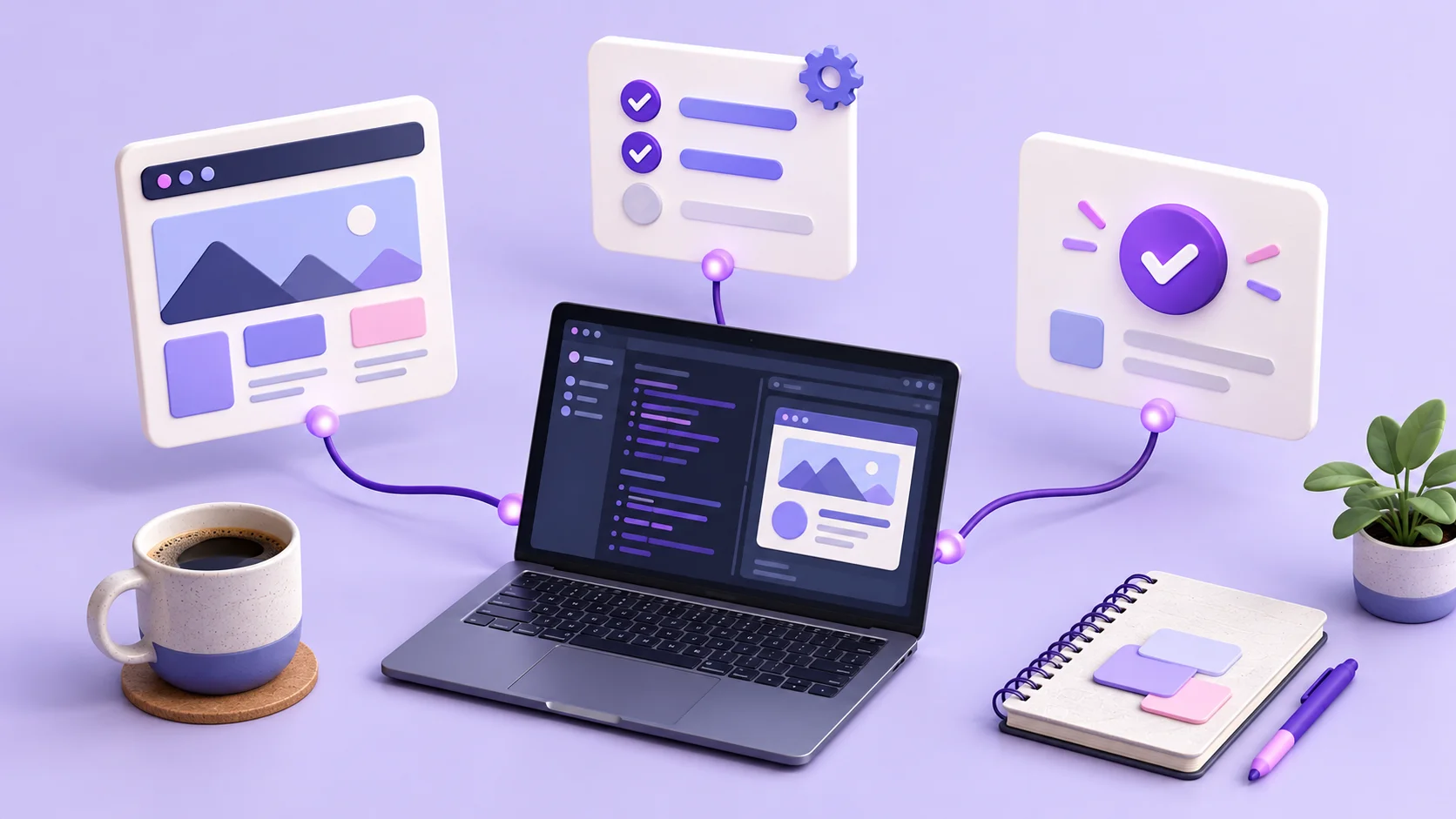
It starts with an ordinary Tuesday
Picture an ordinary Tuesday. A client wants a campaign page. Another says the homepage feels slow. Someone has uploaded a folder of photographs with filenames that look like Wi-Fi passwords.
You open WordPress, your project notes, the design reference, and an AI assistant. Then you start moving information between them. Explain the page. Copy the answer. Find the setting. Paste the text. Check what happened.
Your browser has enough tabs open to qualify as a small shopping centre.
This is where a WordPress MCP workflow becomes interesting. A connected assistant can inspect information and use the tools a server makes available. A request can lead to an actual draft, an audit, or a targeted edit, depending on the connection and its permissions.
The Tuesday above is an illustrative scenario. The underlying shift is real enough to see in published tools and documented projects. MCP is finding a place in work people already do, rather than waiting for everyone to invent a completely new profession.
Why MCP is showing up in everyday WordPress work
Model Context Protocol, or MCP, gives compatible AI applications a standard way to communicate with servers that expose tools and context. For WordPress users, the useful question is what those tools let you accomplish.
The ecosystem now offers several concrete examples. The official WordPress MCP Adapter connects registered WordPress abilities to MCP clients. Separate products can also provide their own MCP servers. The available actions depend on what each implementation exposes.
In a published Webgate agency case study, the team describes using Elementor MCP with AI coding tools on its existing production website. Its process includes existing site context, design references, implementation, visual checks, and refinement. That is recognisable agency work.
Kinsta’s MCP tutorial explores a different part of the day: connecting an assistant to hosting operations through the Kinsta API. Its example includes listing sites, inspecting environments, and clearing a cache.
These examples show implementation activity, not a measurement of industry-wide adoption. There is no need to pretend every agency has already switched. The more useful observation is that MCP now has places to fit: development, publishing, maintenance, hosting, and review.
For developers, the conversation gets closer to the work
A developer rarely needs another convincing paragraph about how a feature might be built. The useful step is getting a first implementation into the right system, in a form someone can inspect.
With suitable tools, a brief can become a draft section that follows existing design conventions. The assistant can read relevant site context, create the structure, and return a result for review. You still decide whether the implementation is sound, whether it belongs in that part of the site, and whether it solves the request.
Take a services page. The work is more specific than “make it modern.” You want the approved copy, the current spacing system, the correct button destination, and an arrangement that works on a narrow screen. Those are decisions you can explain and checks you can repeat.
A connected workflow reduces some of the distance between that brief and the first version. It also makes small structural revisions easier to request: move this section, simplify that layout, reuse the existing class. Whether those actions are available depends on the server and builder you chose.
The editor, browser, repository, and testing tools still have jobs. MCP joins that workflow. A successful tool response is useful evidence that an operation ran; the rendered page still deserves your eyes.
For a concrete example from this site, see how a v0 design became an editable WordPress page.
There are developer tasks beyond page layouts, too. The WordPress.org MCP server can help with plugin-directory work such as readme validation and submission status. That is a separate service from an MCP server controlling your own website. The distinction matters when you choose a connection.
For agencies, the opportunity is a repeatable service
The impressive demo usually gets the attention. The repeatable Tuesday is where an agency can find the value.
Consider a monthly website care visit. You already have a list of things to inspect, a person responsible for decisions, and a client expecting a useful update. A connected assistant can help with the parts supported by its tools. The agency’s contribution is the process around those actions.
Start with a shared brief: which site, which environment, which pages, and which operations are allowed. Ask for findings before changes when the task is diagnostic. Keep the report tied to evidence the team can review.
For a campaign build, use a different brief. Supply the approved offer, brand references, destination links, and the conditions a draft must meet. Then review the actual page before handing it to the client.
This is also where teams should distinguish AI assistance from unattended automation. An MCP connection exposes tools. It does not, by itself, create a schedule, decide when to run, or establish who may publish. Those behaviours need their own orchestration and rules.
Instead of promising a mysterious number of hours saved, measure something you can observe: time to a reviewable draft, corrections needed, issues missed, and how often someone has to redo the work. Compare similar jobs. A faster first pass is welcome; a dependable service is what clients keep paying for.
For site owners, the request can sound like normal language
A business owner should be able to say, “The event date changed. Update this page and show me the result.” They should also be able to understand which page changed and whether it is already public.
That is a useful standard for AI-assisted WordPress management. The conversation should lead to an understandable outcome. A long list of available tools means little if the owner cannot tell what happened.
Some jobs suit a connected assistant. A new section, a targeted site inspection, or a change involving several editable fields may be easier to explain in one place. Other jobs remain simple in the WordPress admin. Editing one headline does not need to become an expedition into protocol settings.
With NoLeemits Plugins, different products cover different jobs. NoLeemits AI Design handles HTML and CSS page design with editable content fields. Vision Builder Control covers WordPress audits, troubleshooting, performance work, and native Elementor building through its tool set.
Pic Pilot Meta is another member of the family, focused on AI image metadata and accessibility checks. That does not mean every NoLeemits plugin exposes the same MCP connection. Choose the product and setup instructions for the task you actually have.
The handoff is part of the product experience. Can the owner update the text later? Can they find the image field? Can the agency explain what still needs review? Those questions remain useful after the novelty has worn off.
What a connected WordPress workday can look like
Here is a practical sequence for a small team. Treat it as a workflow to adapt, rather than a claim that any single connection can do everything.
First, establish the context
Confirm the connected site, environment, user access, and available tools. Ask for a small read before a larger change. There is a world of difference between a staging homepage and a live checkout, even when their tab titles look suspiciously similar.
Next, make one reviewable change
Choose a campaign section, a small content update, or a draft article. Give the assistant approved facts and a clear destination. Keep the result small enough that someone can actually check it.
Then, inspect the result where people will use it
Open the page. Try the links. Read the copy. Check a narrow screen. For an inspection or performance task, compare the relevant evidence before and after the change. Use checks appropriate to the work instead of treating every successful tool call as a finished job.
Finally, leave a useful handoff
Record what changed, where it changed, what was checked, and what remains unresolved. For client work, include whether the result is a draft or published. “Done” is an impressively short update, but it leaves a lot of detective work for everyone else.
We followed a similar pattern on this site when preparing our earlier MCP article: inspect existing article styles, create a draft, upload the featured image, save search metadata, and check desktop and mobile rendering. That describes work performed on the draft, not a claim about search rankings or client results.
Start with one workflow you can repeat
A useful first experiment has a clear beginning, a visible result, and an easy way to judge whether it helped. A staging landing page is a better learning exercise than “please improve the entire business.” The latter also makes a terrible meeting agenda.
Try a brief like this with a connection that supports page editing:
Confirm which WordPress site and environment you are connected to. Read the existing page styles. Create a draft campaign section using only the approved copy below. Keep its text, image, and button link editable. Show me the draft, check desktop and mobile layout, and report what still needs review. Leave publishing to me.
Run the same kind of task again after review. Improve the brief where it was ambiguous. Keep the useful checks. Remove steps that did not contribute. That is how an interesting experiment becomes a working practice.
For an agency, the next step might be a repeatable care-plan inspection. For a developer, it might be translating a design brief into a first section. For a site owner, it might be preparing an event page without an extended email relay.
If you choose NoLeemits AI Design for the page-building exercise, use its MCP setup documentation. For a broader view of the available jobs, start at the NoLeemits Plugins homepage.
The interesting future looks surprisingly ordinary
MCP becomes useful when you stop organising your day around the connection and start organising it around the work.
The client request arrives. The assistant has access to the right tools. A draft appears in the right place. Someone reviews it, asks for a revision, and gets a result they can maintain.
That is a plausible direction for everyday WordPress work. It leaves room for developers who care about implementation, agencies that care about reliable delivery, and owners who mainly want their website to say the right thing.
There will still be awkward layouts. There will still be an image called final-final-really-final.jpg. Progress has limits.
But there can be fewer handoffs between an idea and a reviewable result. Explore NoLeemits Plugins for AI-powered WordPress work, choose one useful job, and see how the workflow feels on your own site.
Questions about everyday WordPress MCP workflows
What is a WordPress MCP workflow?
It is a process in which an AI application uses an MCP connection to access supported WordPress tools, complete a defined task, and return a result for review. The exact actions depend on the connected server and permissions.
Does MCP replace a web developer or WordPress agency?
It can assist with implementation and repeated operations. It does not establish the requirements, judge every design decision, or take responsibility for the finished website. Those responsibilities still need an owner.
Can MCP automate WordPress maintenance?
A suitable server can expose maintenance or inspection tools. Running them on a schedule or without supervision requires additional workflow logic, permissions, and review rules. An MCP connection alone is not a scheduler.
Where should a website owner start?
Choose one small task on a draft or staging site, confirm the connection and access, and inspect the result. Pick tools for the job instead of granting broad access before you know what you need.