MCP Setup
Connect Claude Code, Claude Desktop or any MCP client to your site — one command or one config block — plus what to do when it says “Server disconnected”.
What MCP is here
The plugin ships an MCP server on a single endpoint of your own site. Connect by signing in from the browser (OAuth) or with an API token. Any MCP-capable client can use it: well over a hundred tools out of the box for reading your design tokens, writing sections and managing versions. Switching on an integration (ACF, a form plugin) adds its own set.
Protocol revisions 2025-06-18, 2025-03-26 and 2024-11-05 are supported; the server picks the newest revision your client understands.
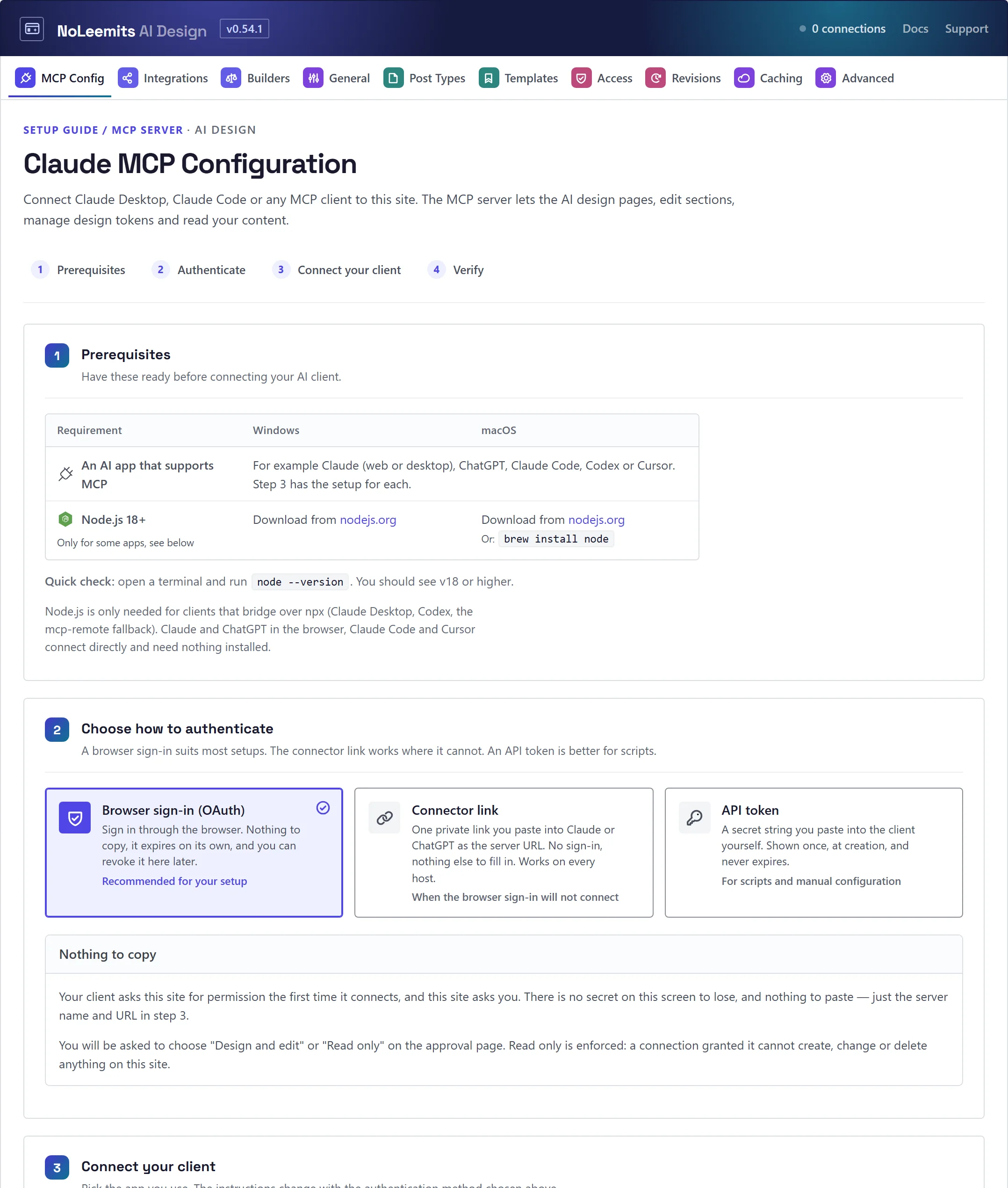
Sign in from the browser (recommended)
Add the server address to your client, then approve the connection in your browser. Nothing to copy or paste. Every client on the MCP Config screen supports it: Claude Desktop, Claude Code, Claude.ai, Cursor, ChatGPT, Codex (app or CLI) and the npx mcp-remote bridge.
Be logged in to WordPress in that browser, with an account allowed to manage Design Pages. When you approve, choose Design and edit or Read only. A read-only connection can't see the tools that change anything, so the assistant never offers to. Either way, a connection can never do more than your own WordPress role allows.
Sign-ins expire on their own and can be revoked from MCP Config → Live connections.
Claude.ai and ChatGPT run on their makers' servers, so they can only reach a site that is public on the internet. For a local or private site, use Claude Desktop, Claude Code or Cursor.
Get a token
Design Pages → Settings → MCP Config, step 2. (Non-administrators: Design Pages → MCP Connection, which lists only their own.) Tokens are still the right choice for scripts and CI.
The plaintext token is shown exactly once. It is stored hashed. Copy it before you navigate away.
Claude Desktop: one click
After generating a token, download the .mcpb bundle and double-click it. Claude Desktop installs the connection itself: no config file to find, no JSON, nothing to install first. Fully quit and reopen Claude Desktop afterwards.
The bundle carries the token, so it can only be downloaded at the moment the token is created.
Claude Code / VS Code: one command
MCP Config generates a ready-made command:
claude mcp add ...
The CLI writes the entry into .mcp.json itself: nothing to locate, no braces to balance, and no way to
land the entry in the wrong place. This is the recommended path.
Prefer to edit the file yourself? The screen also gives you a full config, and a merge into my existing config block: the entry on its own, to paste inside your existing mcpServers object. The server type must be http.
 View full size
Claude Desktop (manual config)
Copy the whole entry from MCP Config into your Claude Desktop config, including the env
block. That block holds the token the ${PPD_AUTH_HEADER} reference stands in for. Dropping it sends an
empty login.
The config launches the bridge via npx -y mcp-remote. You need Node installed; verify with:
node --version
npm install -g mcp-remote is optional: npx fetches it on demand.
Other clients
MCP Config has exact steps for Claude Desktop, Claude Code, Claude.ai, Cursor, ChatGPT, Codex (app or CLI) and the npx mcp-remote bridge. Pick yours in step 3, Connect your client.
Compact tool mode
Add ?tools=compact to the end of the MCP address, for example:
https://example.com/wp-json/noleemits-ai-design/v1/mcp?tools=compact
The assistant then starts with three tools: find_tools (search by task), get_tool_schemas (the arguments of a tool) and call_tool (run it). Everything else works the same, with the same permissions. It saves about 50,000 tokens at the start of each conversation. Connector links take it too.
Make it the default for the whole site. To give every connection the three compact tools without changing its address, have the assistant run update_plugin_settings with mcp_tool_mode: "compact". A connection can still ask for the full list by adding ?tools=full to its address.
About the endpoint address
The address in your config comes from WordPress itself, so it already matches whichever form your site
answers on. On sites with Plain permalinks, WordPress serves its API from index.php?rest_route=…
rather than /wp-json/…, and the generated address will look longer.
Do not "tidy" that address into
/wp-json/…. On a Plain-permalink site that address is a flat 404, and it is the single edit most likely to break a working config. To get the shorter form, change to any permalink structure other than Plain at Settings → Permalinks, then re-copy the config.
Subdirectory installs are handled the same way.
Troubleshooting
| Symptom | Cause and fix |
|---|---|
| The server never appears, and there is no error | The entry landed outside the mcpServers object. The file is still valid JSON, so nothing complains. Check the nesting. |
Server disconnected in Claude Desktop |
Almost always a wrong address or a stale config. Re-copy the config from MCP Config; your token stays valid. |
Server disconnected or nothing happens after a sign-in |
Revoke the connection in MCP Config → Live connections and sign in again. |
| The assistant says it can't make changes | The connection was approved as Read only. Revoke it and reconnect choosing Design and edit. |
status 404 in the MCP log |
The address doesn't exist on your site. Quick test: if /feed/ and /wp-sitemap.xml also 404, no pretty URL works on the site and it's a site-wide permalink problem, not an MCP one. |
spawn mcp-remote ENOENT / 'mcp-remote' is not recognized |
The bridge was launched bare. It must be launched as npx -y mcp-remote. Re-copy the config. |
spawn npx ENOENT |
Node isn't installed or isn't on PATH. Install the LTS build and restart your computer. |
not valid MCP server configurations |
The entry declares a server type Claude Code doesn't accept. It must be http, not url. |
401 Unauthorized with a freshly generated token |
Some servers strip the Authorization header before PHP can read it, so every request looks anonymous. Add RewriteRule .* - [E=HTTP_AUTHORIZATION:%{HTTP:Authorization}] to .htaccess, or the equivalent for your server. |
rest_forbidden |
The token's owner doesn't have Design Page access. Check Settings → Access. |
Bad Request on a local site over plain HTTP |
Add --allow-http to the bridge arguments. |
Invalid URL from mcp-remote --help |
Not a fault. mcp-remote treats its first argument as the server URL, so --help always fails. Verify your install with node --version instead. |
After changing a Claude Desktop config, quit the app fully from the tray. Closing the window is not enough.
Next
- AI Best Practices — how to brief the AI once it's connected
- Getting Started